![adcredo-knowledge-base-1.png]](https://support.adcredo.com/hs-fs/hubfs/adcredo-knowledge-base-1.png?width=300&height=72&name=adcredo-knowledge-base-1.png)
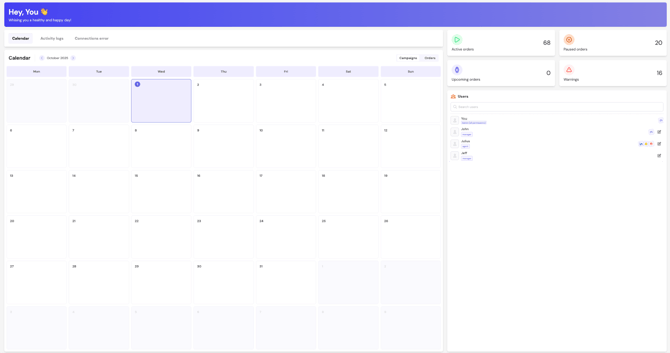
The Dashboard in Adcredo is your starting point when logging in. It gives you a quick overview of your work, including orders, campaigns, user activity, connection status, and warnings. From here, you can easily navigate to the sections where you manage and take action.
- What is the Dashboard in Adcredo?
The Dashboard is the first view you see when logging in to Adcredo. It gives you a quick overview of your activity, campaigns, orders, warnings, and users. From here, you can navigate to the key sections you work with most often. - What can I see in the Dashboard?
The Dashboard includes several sections:
- Calendar:
- Switch between Orders and Campaigns view.
- See when an order or campaign started and for which channel.
- Activity Log:
- Shows changes and activities for the last 30 days by default.
You can filter by action type (created, updated, deleted) and by user who performed the action.
- Shows changes and activities for the last 30 days by default.
- Connection Errors:
- Displays any issues with your platform connections.
- From here, you can identify and fix problems with your connected platforms.
- Widgets:
- Active Orders – see and access all currently running orders.
- Paused Orders – quickly check and restart paused orders.
- Upcoming Orders – review orders scheduled to start soon.
- Warnings – shows the number of warnings in your account. Clicking takes you to the Warning Center.
- Users:
- Shows all colleagues/users connected to your main account and brands.
- Displays and edit their access type (e.g., Regular, Manager, Admin, Sales).
- Calendar:
- Can I manage orders and campaigns directly from the Dashboard?
No, the Dashboard is for overview and navigation. Orders and campaigns are managed in their own sections, which we cover in separate FAQs. - Can I see all warnings from the Dashboard?
The Dashboard shows a summary of warnings. To see full details, click the Warnings widget to access the Warning Center. - What should I do if I see a connection error?
- If you see a connection error in the Dashboard:
- Check the Connections and Platform Connections FAQs for troubleshooting steps.
- Reconnect the platform if your access has expired or been revoked.
- If you see a connection error in the Dashboard:
If the issue remains, contact Adcredo support at support@adcredo.io.