![adcredo-knowledge-base-1.png]](https://support.adcredo.com/hs-fs/hubfs/adcredo-knowledge-base-1.png?width=300&height=72&name=adcredo-knowledge-base-1.png)
Inside Assets go to Search tab:
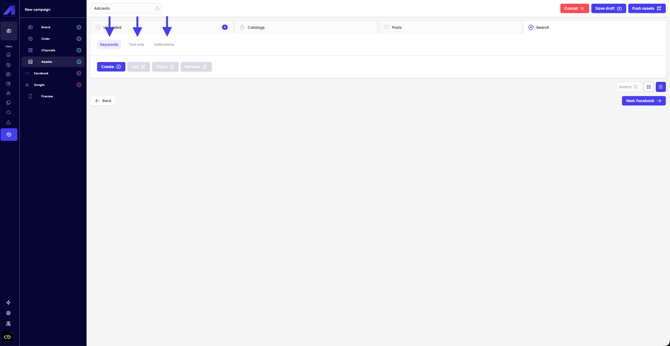
Keywords
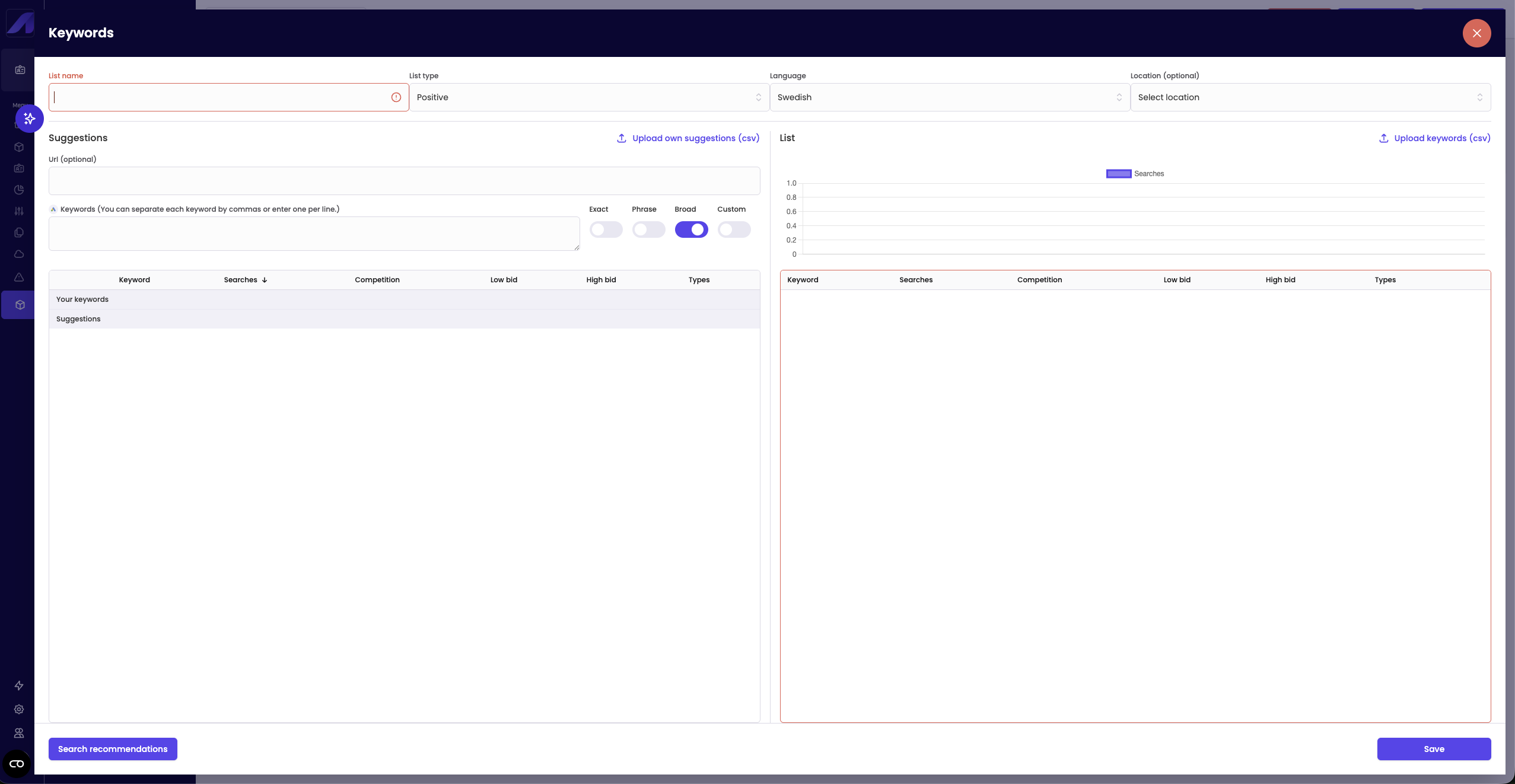
- Click Keywords → Create.
- Give the list a name.
- Choose Positive or Negative list type.
- Select Language and optional Location.
- Add keywords by:
- Uploading a CSV.
- Letting Google scan a URL.
- Typing directly in the input.
- Uploading a CSV.
- Use match type toggles:
- Exact, Phrase, Broad, Custom (manual syntax).
- Exact, Phrase, Broad, Custom (manual syntax).
- Use AICredo to generate keyword ideas from a URL.
- Click Search recommendations to see:
- Suggested variants.
- Search volume, competition, low bid, high bid.
- Suggested variants.
- Add chosen keywords to the right-hand list (final list) and see monthly search volume for the last year.
- Click Save.
Text ads
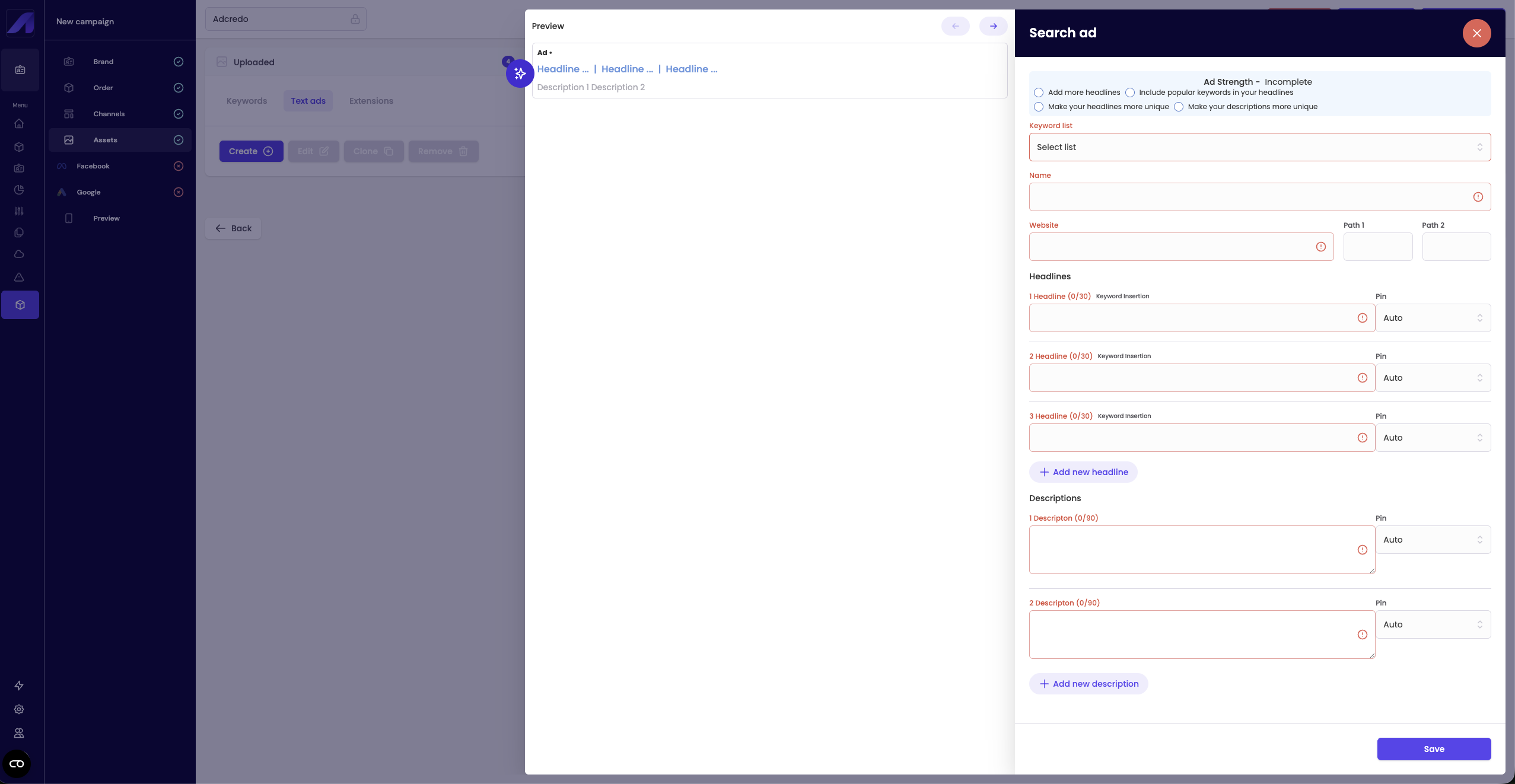
- Click Text ads → Create.
- Link a keyword list.
- Enter Name and Website URL.
- Add headlines (3–15) and descriptions (2–4).
- Use AICredo to generate suggested headlines/descriptions.
- Pin headlines/descriptions if you need more control.
- Keywords used in headlines are highlighted with a green checkmark.
- Click Save.
Assets
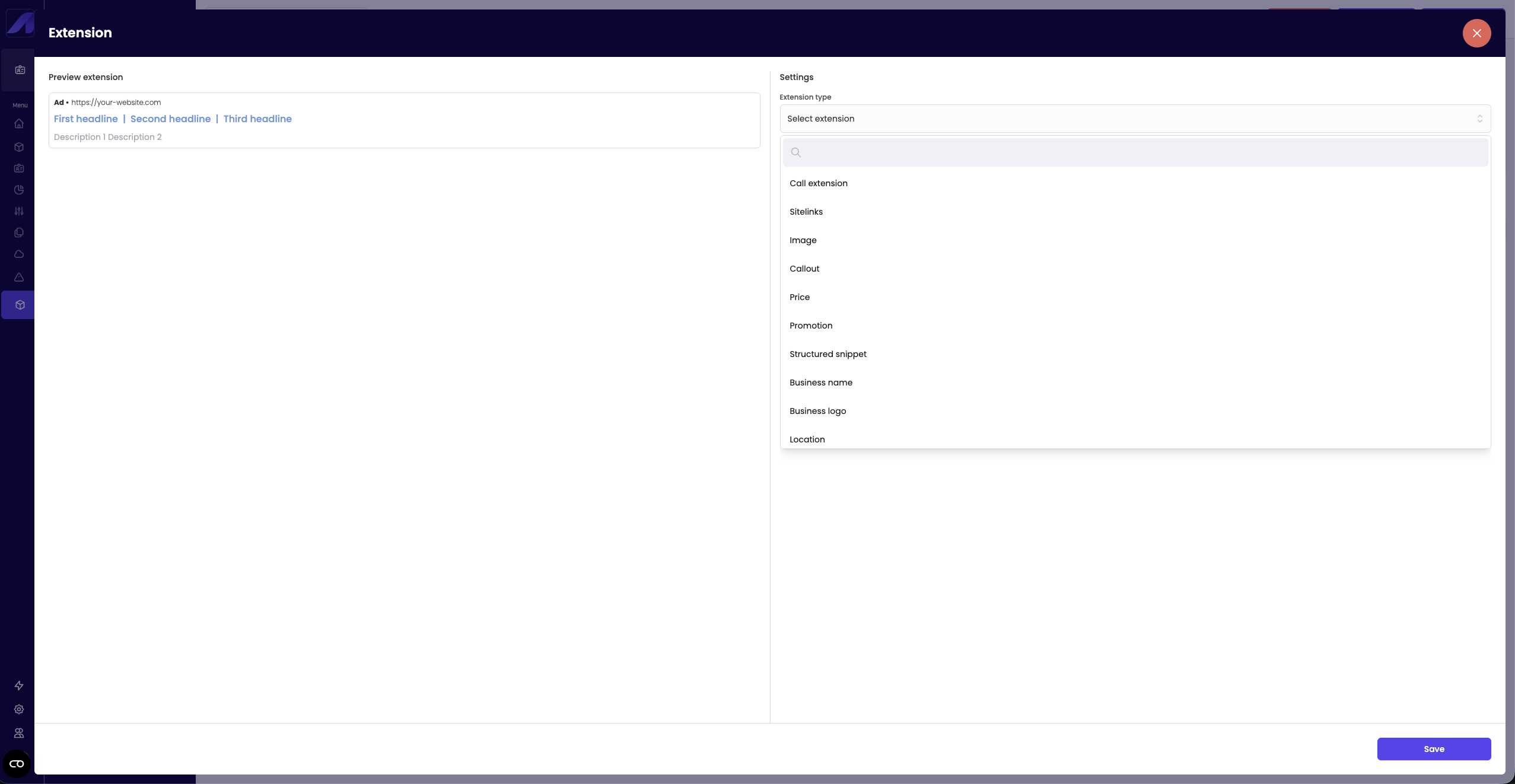
- Click Assets → Create.
- Choose asset type:
- Call asset, sitelink, image, callout, price, promotion, structured snippet, business name, business logo, location.
- Call asset, sitelink, image, callout, price, promotion, structured snippet, business name, business logo, location.
- Fill required fields and Save.
These elements are later pushed to Google/Bing campaigns in the Push assets step.