![adcredo-knowledge-base-1.png]](https://support.adcredo.com/hs-fs/hubfs/adcredo-knowledge-base-1.png?width=300&height=72&name=adcredo-knowledge-base-1.png)
The Ad builder is a multi-step flow used to create ads.
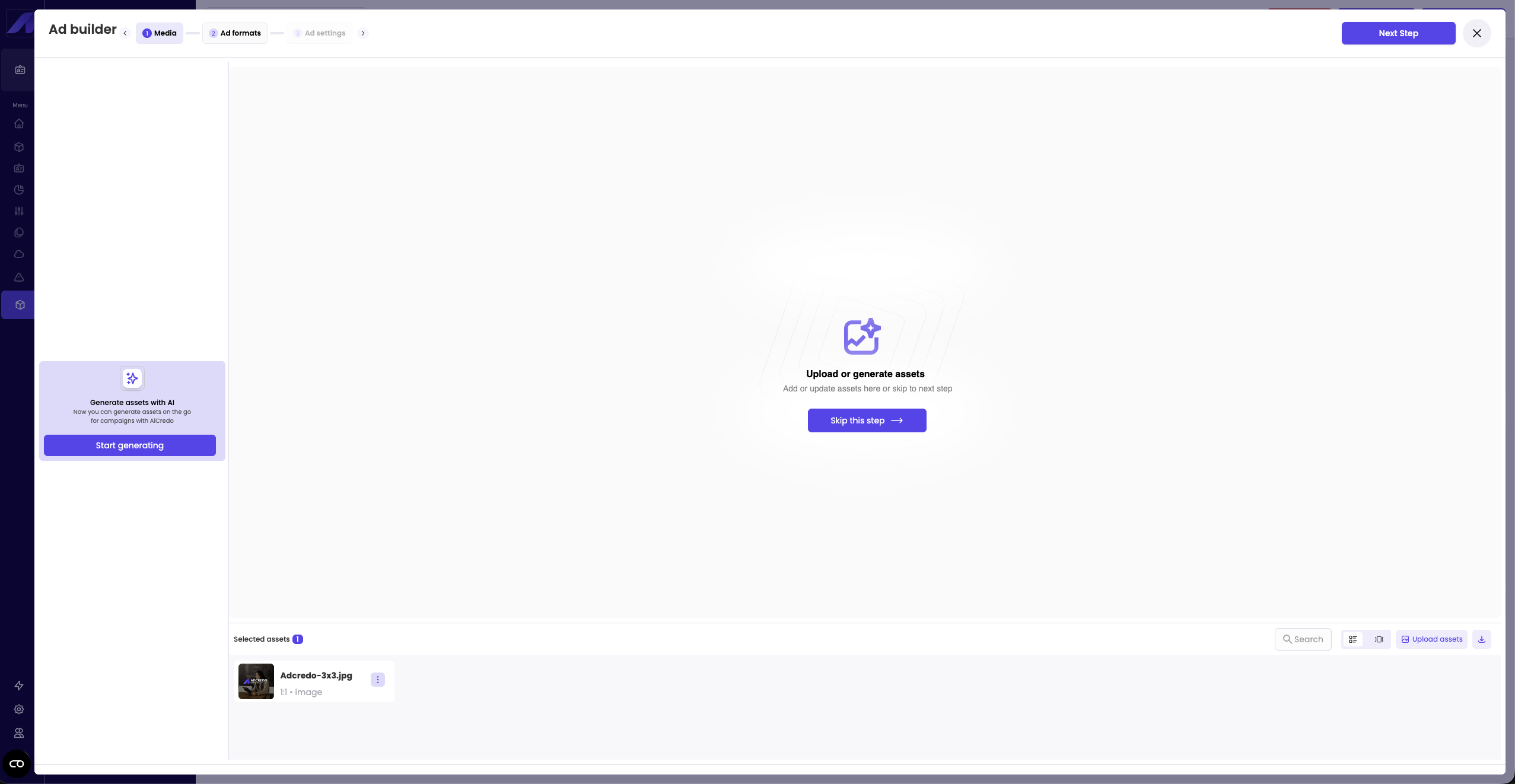
Step 1: Media
- Shows your selected assets at the bottom.
- You can:
- Search assets.
- Switch between collection and side-by-side views.
- Upload more assets.
- Download assets.
- Search assets.
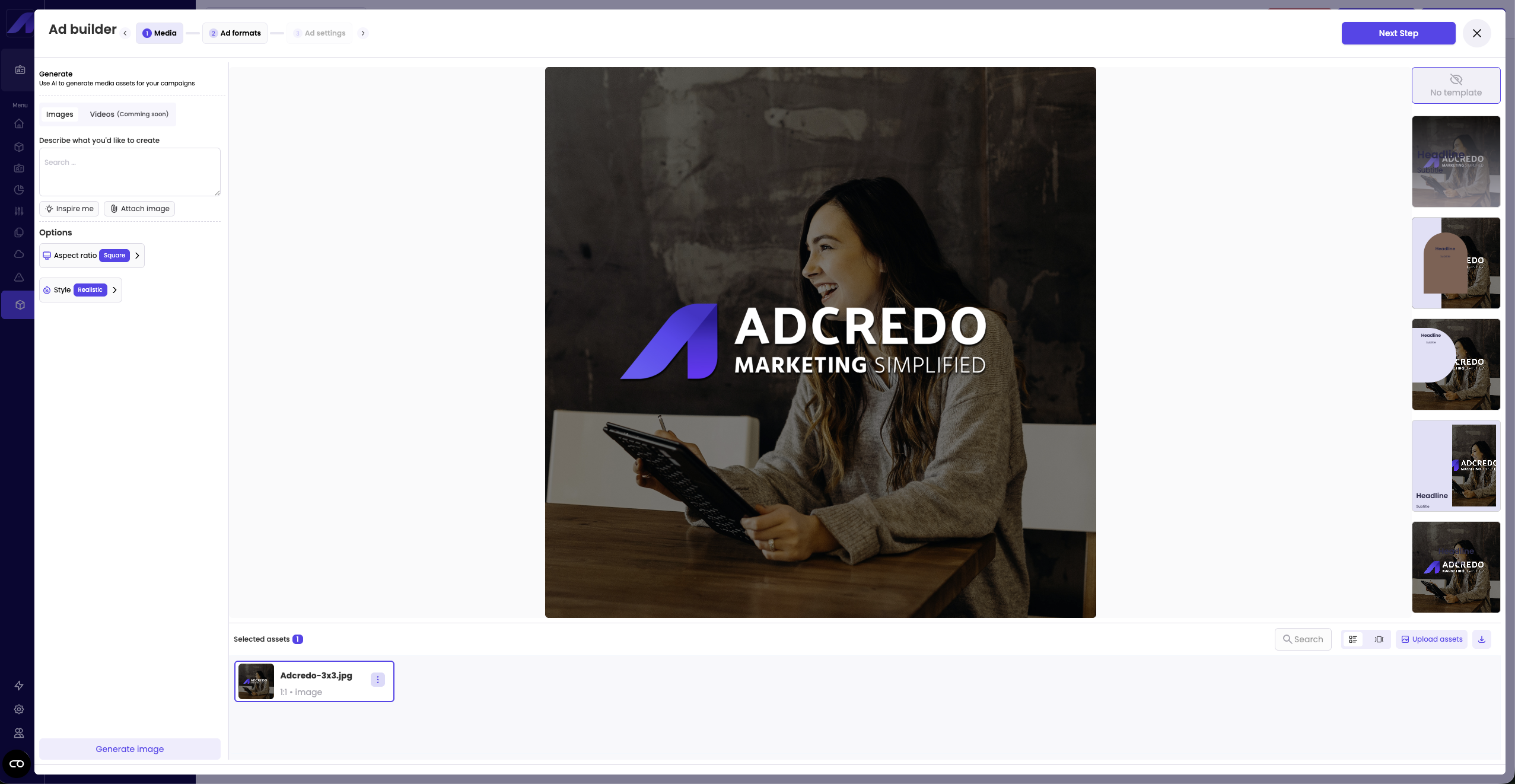
AI image generation (AICredo):
- On the left side, click Generate AI images to open AICredo for images.
- You can:
- Describe what you want to create, or ask for inspiration.
- If you have used Brand AI profiler data when creating your brand, you will receive better suggestions.
- Attach an image to use as a base, or use the 3-dot menu on an existing asset to “Use for prompting”.
- Describe what you want to create, or ask for inspiration.
- Options include:
- Aspect ratio: Square, Horizontal, Vertical.
- Style: No style, Anime, Realistic, Cartoon, Fantasy, Sci-fi, etc.
- Aspect ratio: Square, Horizontal, Vertical.
- Click Generate:
- When an image is generated, click it to add it to selected assets.
- When an image is generated, click it to add it to selected assets.
Templates (ad overlays):
- Click an asset to open templates on the right.
- Choose a preset template (templates are pre-defined; custom templates are not yet supported).
- You can then change:
- Headline and subtitle.
- Ratio.
- Colors.
- Logo and logo position/size.
- Headline and subtitle.
- When done, click Add this image to selected assets to create a new templified asset.
Step 2: Ad formats
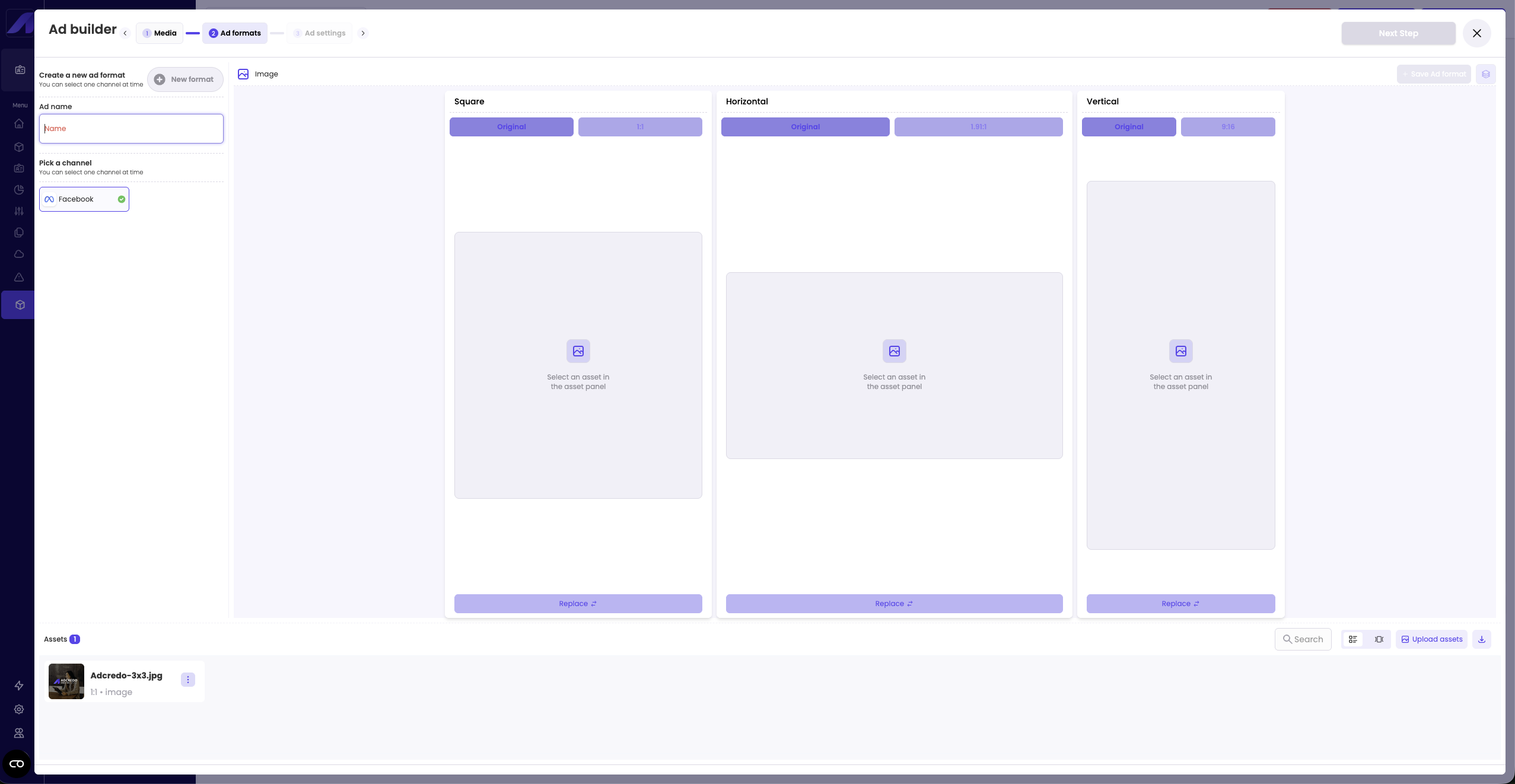
- Choose Ad format:
- Image.
- Video.
- Carousel.
(You cannot create image, video and carousel at the same time, but you can create multiple formats one after another.)
- Image.
- Add a name for the ad format.
- Choose which channels to create it for
- Adcredo automatically knows which formats each platform supports.
- Adcredo automatically knows which formats each platform supports.
- Select one or more assets:
- Assets populate the format placeholders.
- You can crop within each placeholder to meet platform requirements (e.g. feed vs story).
- Use Replace in each slot to pick a different asset if needed.
- Assets populate the format placeholders.
- When finished, click Save ad format:
- The saved format appears in a “basket” in the top right.
- The placeholder area resets so you can create another ad format (for example a video or a carousel).
- The saved format appears in a “basket” in the top right.
- For carousel, you must select more than one image.
Step 3: Ad settings
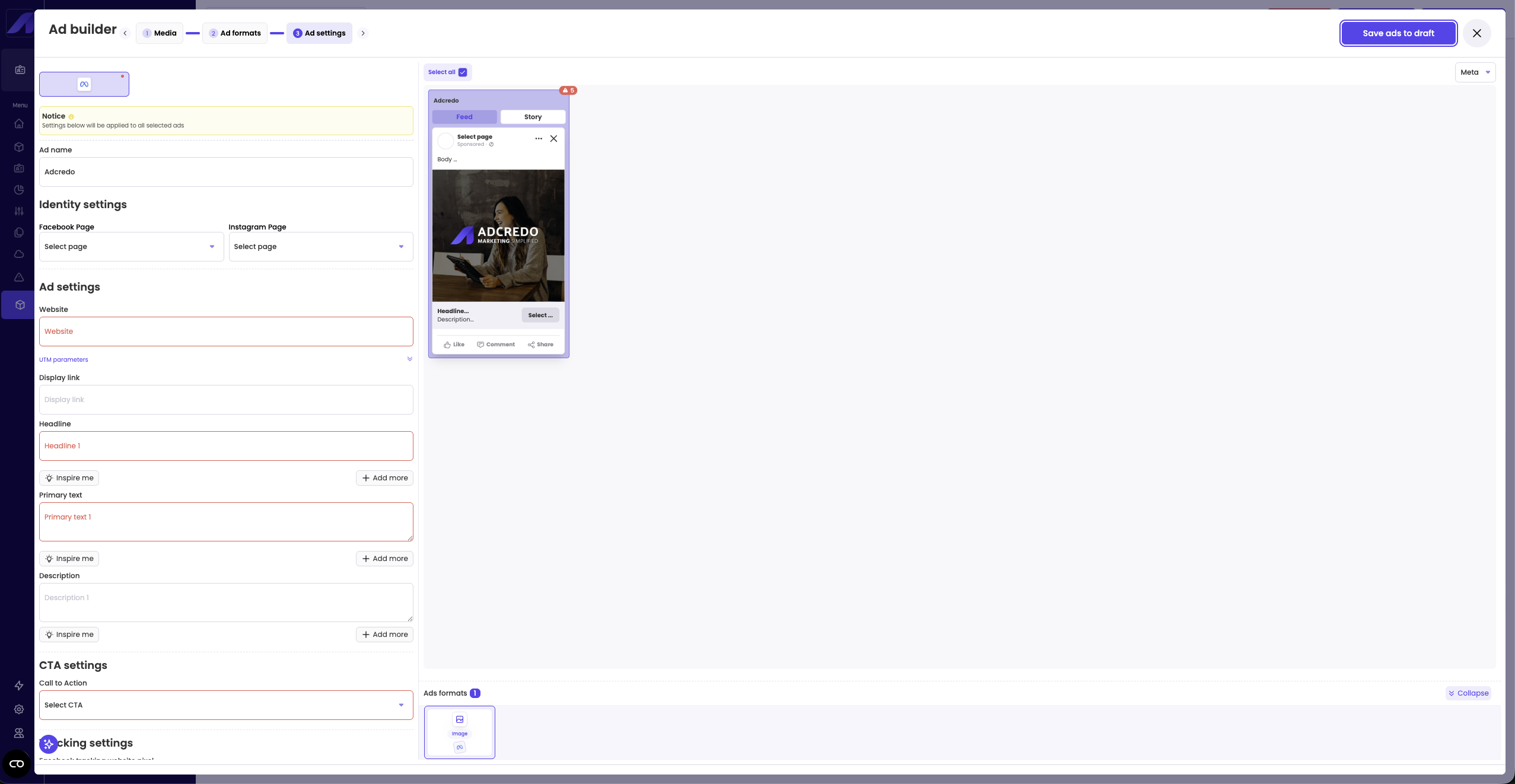
- This is where you define copy, identity, CTA, tracking and other ad-level settings.
- In the bottom area you see all created ad formats and can switch between them.
- At the top left you choose which platform you are editing for (Meta or LinkedIn).
You cannot edit Meta and LinkedIn ads at the same time, but you can quickly switch between them. - You can select:
- One ad or multiple ads if you want to apply settings in bulk (e.g. same identity, CTA or tracking).
- One ad or multiple ads if you want to apply settings in bulk (e.g. same identity, CTA or tracking).
- Settings include:
- Identity (page/account).
- Website link and tracking parameters.
- Headlines, primary text, descriptions.
- Call-to-action.
- Identity (page/account).
- Many platforms allow multiple headlines and primary texts for testing.
- You can add several variants and the platform will optimise between them.
- You can add several variants and the platform will optimise between them.
- Text inspiration:
- “Inspire me” buttons next to text fields use AI to suggest copy.
- A separate AI assistant button in the bottom left can generate structured copy using Brand AI profiler data, website URL and language selection.
- AI generation uses a “thinking mode” and usually takes around 1–2 minutes.
- “Inspire me” buttons next to text fields use AI to suggest copy.
- Any field highlighted in red is required and must be filled before the ad can be used.
- For carousel ads, you also have a Slides tab to manage per-card settings.
- On the preview you can:
- Switch between feed and story previews.
- Switch between Meta and Instagram placements at the top right (for Meta).
- Switch between feed and story previews.
When you are done:
- Click Save ads to drafts (top right).
- If you leave the builder without saving, your ad creations are lost.
After saving, you are sent back to the Assets view in the campaign draft.