![adcredo-knowledge-base-1.png]](https://support.adcredo.com/hs-fs/hubfs/adcredo-knowledge-base-1.png?width=300&height=72&name=adcredo-knowledge-base-1.png)
n the Preview step:
Internal preview
- Switch between channels (Facebook, Instagram, LinkedIn, Google, etc.).
- Scroll through all ads and placements.
- Use Information above and Ad information below the preview to see:
- Budget.
- Start/end dates.
- Locations.
- Audiences (for social).
- Headlines/descriptions.
- Keywords (for Google).
- Budget.
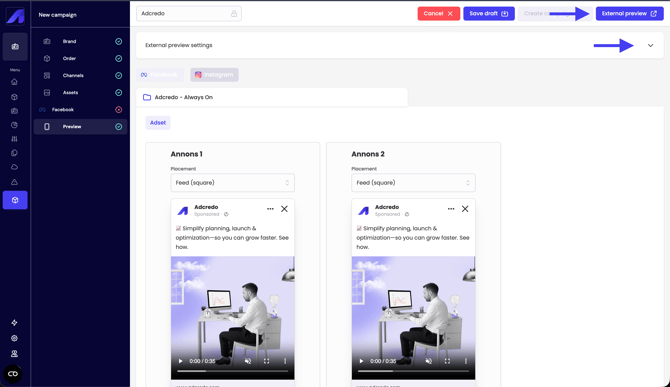
External preview
- Open Preview settings:
- Enable/disable External preview.
- Choose Brand logo or Account logo.
- Add a headline and description.
- Choose which extra info to include:
- Budget.
- Start/end dates.
- Locations.
- Audiences (social only).
- Headlines/descriptions.
- Keywords (Google only).
- Budget.
- Enable/disable External preview.
- Click External preview:
- Opens a shareable preview page.
- This page can be fully white-labelled to match your organisation’s branding (colours, fonts, logos).
- Opens a shareable preview page.
If you change the draft and save, the preview link shows the updated ads automatically.